A. Introduction
As the title conveys, in this article I would like to show how one can create a workflow (using SharePoint Designer), which sends notifications to a list of recipients 7 days before the start date of a calendar entry.
B. Preparations
Create a
Calendar, which we would attach the workflow to. For this demo, I have created a Calendar called
Team Meetings.
C. Workflow
- Open
Microsoft Office SharePoint Designer 2007.
- Click
File >
Open Site.
- Enter the
URL of the site containing our calendar called Team Meetings.
- Now click
File >
New >
Workflow.
- On the
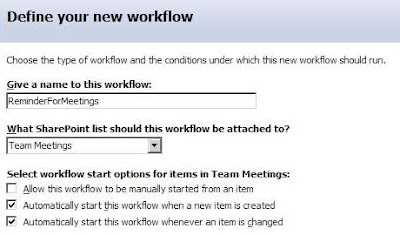
Define your new workflow page, enter the following data:
---
Name: ReminderForMeetings
---
Attachment List: Team Meetings
---
Start Options: Automatically start this workflow when a new item is created and Automatically start this workflow whenever an item is changed
- Click
Next, in order to start designing the
workflow steps.
- Enter
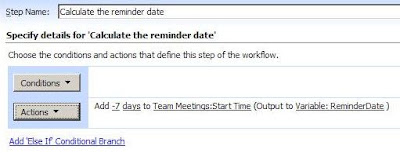
Calculate the reminder date as the Step Name.
- In the
Actions section, select the action
Add Time to Date.
- Click the
0 link and type
-7.
- Click the
minutes link and select
days.
- Click the
date link and then click
fx. For the
source select
Current Item and for the
field select
Start Time.
- Click
OK.
- Click the
output link and create a
new variable called
ReminderDate of type
Date/Time.
- Click
OK.
- Click Add workflow step in the right panel, in order to create
another workflow step.
- Enter
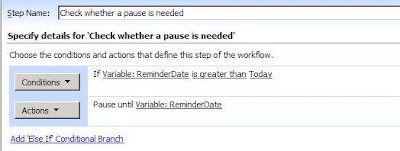
Check whether a pause is needed as the Step Name.
- In the
Conditions section, select
Compare any data source.
- Click the
value link, then click
fx. For the
source select
Workflow Data and for the
field select
ReminderDate.
- Click the
equals link and select
is greater than.
- Click the
value link. Click the
ellipsis, select
Current Date and click
OK.
- In the
Actions section, select the action
Pause Unit Date.
- Click the
this time link and click
fx. For the
source select
Workflow Data and for the
field select
ReminderDate.
- Click
Add workflow step in the right panel, in order to create
another workflow step.
- Enter
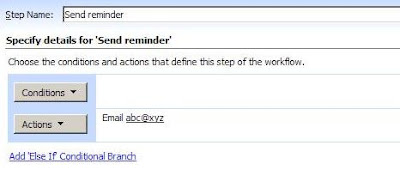
Send reminder as the Step Name.
- In the
Actions section, select the action
Send an Email.
- Click the
this message link and configure the different e-mail settings.
- Click
Finish, in order to save and publish the workflow.
D. Test the solution
1. Create a new calendar item, whose Start Date is less than 7 days.
-- Check that the ReminderForMeetings workflow has completed successfully.
-- Check that you receive a notification now.
2. Create a new calendar item, whose Start Date is greater than 7 days.
-- Check that the ReminderForMeetings workflow has started successfully.
-- Check that you receive a notification on the right date.
 - Click Next, in order to start designing the workflow steps.
- Enter Calculate the reminder date as the Step Name.
- In the Actions section, select the action Add Time to Date.
- Click the 0 link and type -7.
- Click the minutes link and select days.
- Click the date link and then click fx. For the source select Current Item and for the field select Start Time.
- Click OK.
- Click the output link and create a new variable called ReminderDate of type Date/Time.
- Click OK.
- Click Next, in order to start designing the workflow steps.
- Enter Calculate the reminder date as the Step Name.
- In the Actions section, select the action Add Time to Date.
- Click the 0 link and type -7.
- Click the minutes link and select days.
- Click the date link and then click fx. For the source select Current Item and for the field select Start Time.
- Click OK.
- Click the output link and create a new variable called ReminderDate of type Date/Time.
- Click OK.
 - Click Add workflow step in the right panel, in order to create another workflow step.
- Enter Check whether a pause is needed as the Step Name.
- In the Conditions section, select Compare any data source.
- Click the value link, then click fx. For the source select Workflow Data and for the field select ReminderDate.
- Click the equals link and select is greater than.
- Click the value link. Click the ellipsis, select Current Date and click OK.
- In the Actions section, select the action Pause Unit Date.
- Click the this time link and click fx. For the source select Workflow Data and for the field select ReminderDate.
- Click Add workflow step in the right panel, in order to create another workflow step.
- Enter Check whether a pause is needed as the Step Name.
- In the Conditions section, select Compare any data source.
- Click the value link, then click fx. For the source select Workflow Data and for the field select ReminderDate.
- Click the equals link and select is greater than.
- Click the value link. Click the ellipsis, select Current Date and click OK.
- In the Actions section, select the action Pause Unit Date.
- Click the this time link and click fx. For the source select Workflow Data and for the field select ReminderDate.
 - Click Add workflow step in the right panel, in order to create another workflow step.
- Enter Send reminder as the Step Name.
- In the Actions section, select the action Send an Email.
- Click the this message link and configure the different e-mail settings.
- Click Add workflow step in the right panel, in order to create another workflow step.
- Enter Send reminder as the Step Name.
- In the Actions section, select the action Send an Email.
- Click the this message link and configure the different e-mail settings.
 - Click Finish, in order to save and publish the workflow.
D. Test the solution
1. Create a new calendar item, whose Start Date is less than 7 days.
-- Check that the ReminderForMeetings workflow has completed successfully.
-- Check that you receive a notification now.
2. Create a new calendar item, whose Start Date is greater than 7 days.
-- Check that the ReminderForMeetings workflow has started successfully.
-- Check that you receive a notification on the right date.
- Click Finish, in order to save and publish the workflow.
D. Test the solution
1. Create a new calendar item, whose Start Date is less than 7 days.
-- Check that the ReminderForMeetings workflow has completed successfully.
-- Check that you receive a notification now.
2. Create a new calendar item, whose Start Date is greater than 7 days.
-- Check that the ReminderForMeetings workflow has started successfully.
-- Check that you receive a notification on the right date.


